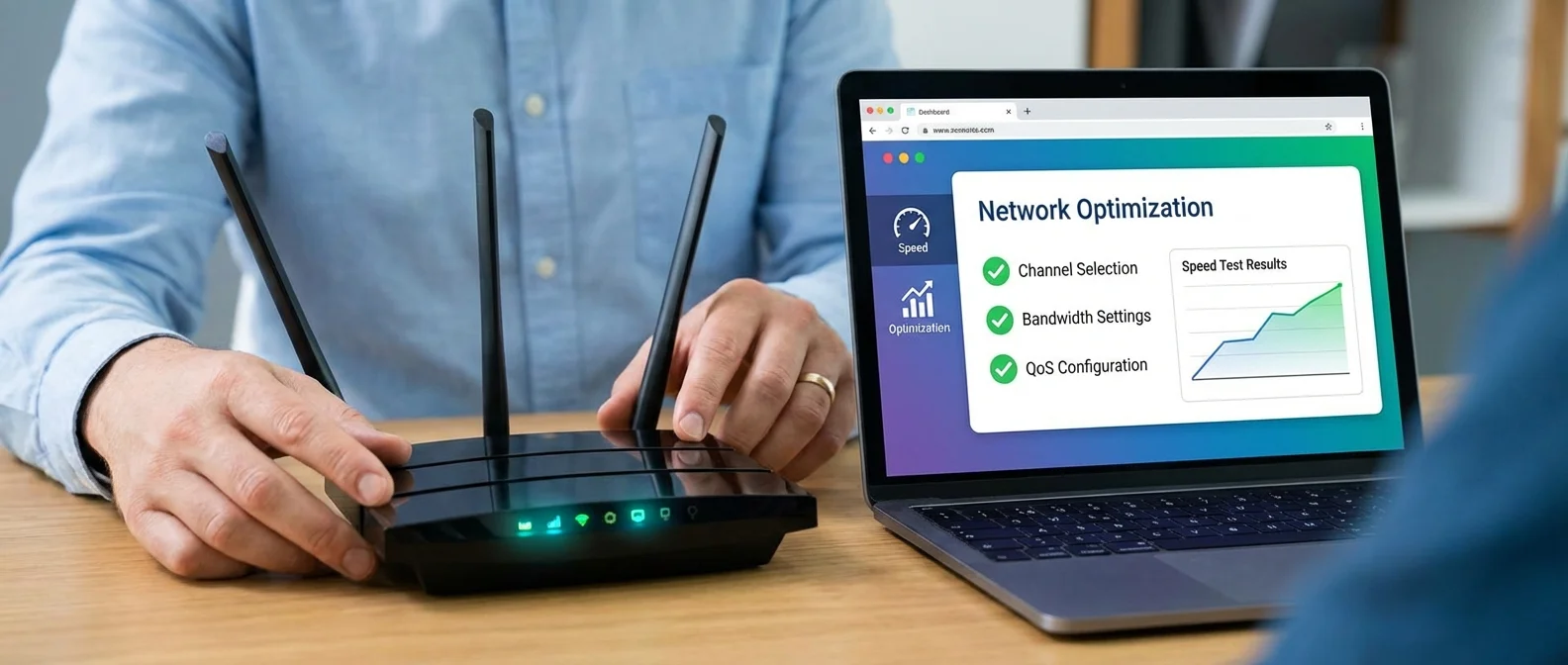
Paying for fast internet but stuck with sluggish WiFi? Before blaming your ISP, take a look at your router settings. Proper configuration can make a huge difference — from physical placement to WiFi channel selection and DNS settings. In this guide, you'll find the most effective tips to get the most out of your connection.
📖 Read more: WiFi Extender vs Mesh: Which One Do You Actually Need?
Router Placement: The Foundation of Good WiFi
Where you put your router is the most underrated speed factor. Many people hide it behind furniture or leave it on the floor — then wonder why their signal is weak.
Placement Rules
- Central location: Place the router in the center of your home, not at one end
- 1.5-2 meters high: On a shelf or open cabinet, never on the floor
- Away from interference: Avoid metal surfaces, mirrors, microwaves, and cordless phones
- Not inside cabinets: Enclosed furniture significantly blocks WiFi signal
- Clear space: Keep at least 30 cm of clearance around the router for proper ventilation
In a typical Greek apartment of 80-100 sq.m., central placement ensures even coverage with no dead zones. If your router sits near the entrance (where the line usually comes in), consider running an Ethernet cable to a central point or using a mesh system.
WiFi Channel & Band Selection
In apartment buildings, dozens of WiFi networks compete on the same channels. Choosing the right channel can dramatically improve your speed.
Channels by Band
2.4 GHz: Only use channels 1, 6, or 11 — they're the only ones that don't overlap. Use a WiFi analyzer app (WiFi Analyzer for Android, AirPort Utility for iOS) to find the least congested one.
5 GHz: More available channels and less congestion. DFS channels (52-144) are usually less crowded, though some devices don't support them.
6 GHz (WiFi 6E/7): Clean spectrum with no congestion — ideal if your router and devices support it.
Band Steering
Enable Band Steering in your router settings. This automatically pushes devices that support 5/6 GHz to those bands, freeing up 2.4 GHz for older IoT devices. Most ISP routers in Greece (Speedport, Connect Box) support this feature.
Channel Width
Set 2.4 GHz to 20 MHz for stability. On 5 GHz, use 80 MHz (or 160 if supported). On 6 GHz, you can go up to 160 or even 320 MHz for maximum throughput.
10 Settings That Make a Real Difference
Beyond channel and placement, there are settings that few people know about but can significantly boost performance.
DNS Settings
Switch your DNS from your ISP's default to faster alternatives:
📖 Read more: Powerline Adapters: Still Worth It in 2026?
- Cloudflare: 1.1.1.1 / 1.0.0.1
- Google: 8.8.8.8 / 8.8.4.4
- Quad9: 9.9.9.9 (with filtering)
QoS (Quality of Service)
Prioritize gaming and video calls over regular downloads. Modern routers often include auto-QoS or Smart Connect that manages bandwidth demand automatically.
WiFi Security
WPA3 if supported, otherwise WPA2-AES at minimum. Never use WEP or WPA-TKIP — they're insecure and can actually slow down your connection. Always change the default admin password.
Firmware & MU-MIMO
Update firmware every 3 months. Enable MU-MIMO and OFDMA (WiFi 6+) for better handling of multiple devices simultaneously.
Additionally, if you're using your own router alongside your ISP's device, put the ISP router in Bridge Mode. This avoids double NAT, which causes problems with gaming, VPN connections, and port forwarding.
Settings Comparison: Difficulty & Impact
Router Settings — Evaluation
| Setting | Difficulty | Impact | Requires |
|---|---|---|---|
| Router placement | Easy | High | Nothing |
| Channel change | Easy | High | WiFi Analyzer app |
| DNS change | Easy | Medium | Nothing |
| Enable QoS | Medium | High | Router with QoS |
| WPA3 encryption | Easy | Medium | WPA3-compatible router |
| Firmware update | Easy | Medium | Nothing |
| Band Steering | Medium | High | Dual/Tri-band router |
| Bridge Mode | Hard | High | Second router |
Greek ISP Router Settings
Most Greek users rely on their ISP-provided router. Here's how to access the settings panel for each major provider:
COSMOTE Speedport
Access via 192.168.1.1. The admin panel is fairly comprehensive. It supports Band Steering, channel selection, and basic QoS settings. With COSMOTE fiber (up to 1 Gbps), the router often becomes a bottleneck — consider upgrading to a WiFi 6 router if you have many devices.
Vodafone Connect Box
Access via 192.168.2.1. Navigate to Settings → WiFi → Advanced for channel and band selection. Supports DNS changes, basic QoS, and band steering. The latest firmware update improved stability noticeably.
Nova (Wind) Router
Access via 192.168.1.1. Basic WiFi settings are available. For more advanced features (QoS, MU-MIMO), switching to your own router may be worth the investment.
Important Tip
In Greek apartment buildings with dozens of visible WiFi networks, channel optimization is critical. Run a scan with WiFi Analyzer at least once a month — neighboring networks frequently change channels, and your current selection may no longer be optimal.
"80% of WiFi problems can be solved without buying anything — just with the right settings. Placement, channel, and DNS are the three things you should check first, before considering a mesh system or switching providers."