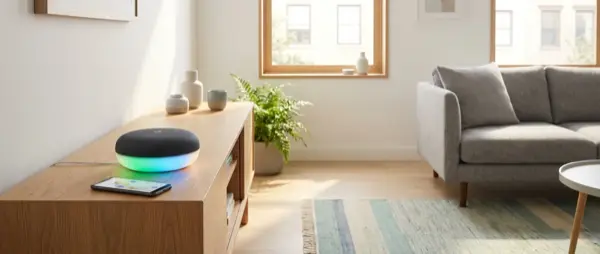
Initial Google Home 2026 Setup
The Google Home app received a major overhaul in 2026 with a redesigned UI, faster responsiveness, and deeper Gemini AI integration. Whether you're starting from scratch or upgrading an existing setup, this guide covers every step.
Step 1: Download the App
Download Google Home from Google Play or the App Store. Make sure you have the latest version (v4.x+). Sign in with the Google Account you'll use as the primary account — this account will have full control over all devices.
Step 2: Create a Home & Rooms
Go to Settings → Home → Add room. Create rooms that match your home: Living Room, Bedroom, Kitchen, Office, Bathroom, Kids' Room. Rooms are critical because without them you can't give commands like "Hey Google, turn off the lights in the living room."
Step 3: Add Devices
Tap + → Set up device → New device. The app will scan for Google/Nest devices on your network. For third-party devices (Philips Hue, TP-Link, Aqara, etc.), tap Works with Google → Works with Google Home and search for your brand.
Core Device Settings
Google Nest Mini / Nest Audio
- Placement: On a stable surface, away from the wall (5cm+), ideally at ear height
- Wi-Fi: Use 2.4GHz for better range or 5GHz for faster response
- Voice Match: Settings → Voice Match → Train your voice so the Assistant recognises you
- Default Music: Settings → Music → Choose YouTube Music, Spotify, or Apple Music
- Night Mode: Settings → Night Mode → Enable for quieter volume at night
Google Nest Hub / Hub Max
- Ambient Mode: Shows Google Photos, clock, and weather as a screensaver
- Dashboard: Add your most-used devices to the quick-control dashboard
- Camera Feed: Tap a camera on the dashboard for a live view without a voice command
- Sleep Sensing (Hub Max): Tracks your sleep without a wearable — uses radar technology
Routines: Automate Your Life
Google Home Routines are the most powerful automation tool. Each routine consists of: Trigger (when it activates), Conditions (under what circumstances), and Actions (what it does).
Routine: Good Morning
| Element | Setting |
|---|---|
| Trigger | Voice command “Hey Google, good morning” |
| Action 1 | Turn on kitchen lights at 70% |
| Action 2 | Set thermostat to 22°C |
| Action 3 | Report the weather |
| Action 4 | Read today's calendar events |
| Action 5 | Play news on Nest Hub |
Routine: Leaving Home
Trigger: Geolocation (you leave 200m from home). Actions: turn off all lights, lock the door (smart lock), set thermostat to Away mode, activate cameras.
Routine: Movie Night
Trigger: “Hey Google, movie night”. Actions: dim living room lights to 15%, turn on TV, open Netflix, silence phones (DND).
Routine: Bedtime
Trigger: “Hey Google, goodnight” or scheduled at 23:00. Actions: turn off all lights, lock doors, set morning alarm, thermostat to night mode, play relaxation sounds on the bedroom Nest Mini.
Top Voice Commands
Lighting
- "Hey Google, turn on/off the lights in the living room"
- "Hey Google, set the lights to 40%"
- "Hey Google, set warm white in the bedroom"
- "Hey Google, set the lights to blue"
Temperature
- "Hey Google, what's the temperature inside?"
- "Hey Google, set thermostat to 21°C"
- "Hey Google, raise the heating 2 degrees"
Security
- "Hey Google, show me the outdoor camera"
- "Hey Google, lock/unlock the front door"
- "Hey Google, arm the alarm"
Media & Entertainment
- "Hey Google, play jazz music"
- "Hey Google, play [show] on Netflix on the TV"
- "Hey Google, volume 30 in the living room"
- "Hey Google, broadcast dinner's ready"
Multi-User & Family Features
Voice Match
Each family member can train their voice. The Assistant recognises the speaker and provides personalised responses: your own calendar, playlists, notes. Up to 6 users per home.
Family Bell
Create announcements for the whole family: “Time for dinner!”, “Time to brush your teeth!”. Bells play on all speakers simultaneously or in specific rooms.
Guest Mode
Enable Guest Mode so visitors can cast music or video without accessing your devices or personal data.
Third-Party Device Integration
| Category | Popular Brands | Connection |
|---|---|---|
| Lighting | Philips Hue, IKEA, Govee, LIFX | Works with Google |
| Heating | Nest, Tado, Netatmo, Ecobee | Native / WwG |
| Security | Nest, Arlo, Eufy, Ring (limited) | WwG / Matter |
| Locks | Yale, Nuki, August | WwG / Matter |
| Vacuums | Roborock, Dreame, iRobot | WwG |
| TV & Media | Chromecast, Android TV, Sonos | Native / Cast |
Security & Privacy
- Voice History: Settings → Privacy → View and delete voice recordings
- Activity Controls: myaccount.google.com → Configure what's stored
- Mute Switch: Use the physical mute button on Nest speakers for full privacy
- 2FA: Enable two-factor authentication on your Google Account
- Guest Network: Place smart devices on a separate Wi-Fi network (VLAN if possible)
Troubleshooting
- "Can't control the device": Unlink and re-link the brand in Works with Google
- Slow response: Restart the speaker, check Wi-Fi connection, move closer to the router
- Voice not recognised: Retrain Voice Match: Settings → Voice Match → Retrain
- Routines not running: Check that conditions are correct, account is primary, and devices are online
Conclusion
Google Home 2026 is a comprehensive smart home platform with impressive automation capabilities. The Gemini AI integration makes the Assistant more conversational and capable than ever, while Matter protocol support ensures broad compatibility.
Start with the basics: install speakers, create rooms, connect lights. Then build routines that automate your daily life. Within a few days you'll wonder how you ever lived without voice control.