📖 Read more: Gaming and Mental Health: Complete Guide
🏗️ Server Setup: Building the Foundation
How you set up your server determines the entire experience. A properly organized server makes life easier for both admins and members. Follow these steps for professional results.
Basic Channel Structure
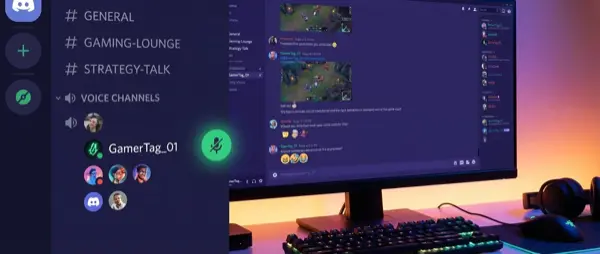
Organize channels into categories. A typical gaming server structure includes:
- 📋 INFO: welcome, rules, announcements, roles-select
- 💬 GENERAL: general-chat, memes, off-topic, media-share
- 🎮 GAMING: looking-for-group, game-specific channels (valorant, league, etc.), clips
- 🔊 VOICE: General Voice, Gaming 1/2/3, AFK, Music
- 🛠️ ADMIN: mod-chat, mod-logs, bot-commands (hidden from members)
Server Template vs Custom
Discord offers built-in templates (Gaming, Friends, Study Group). These are a great starting point, but for a serious gaming community you need a custom setup. Start from a template and customize it to your needs. You can also export your own template once it's built.
💡 Pro Tip: Channel Naming Convention
Use emojis before each channel name (e.g., 📢-announcements, 🎮-gaming-chat). It makes channels more readable and gives a professional look. Keep names short — 2-3 words maximum.
🛡️ Roles & Permissions: Access Control
Roles are the heart of Discord server management. Properly configured permissions ensure that each member sees exactly what they should, without unnecessary noise.
👑 Admin & Mod Roles
Server Owner, Admin (manage server, manage roles), Moderator (kick, ban, manage messages). Keep admins minimal — 2-3 trusted people is enough.
🎮 Game-Specific Roles
Valorant Player, LoL Player, Fortnite Player. Members can self-assign via reaction roles. Unlocks corresponding game channels.
⭐ Activity Roles
Regular, Active, VIP, OG Member. Awarded based on participation or time on server. Can unlock exclusive channels.
🎨 Color Roles
Cosmetic roles that only change username color. Popular in gaming communities. Can be given as rewards or through Nitro boosts.
📖 Read more: Twitch Streaming: How to Get Started
Permission Best Practices
- Never give Administrator permission to anyone except Owner — use granular permissions
- Use channel-level overrides instead of server-level permissions where possible
- Enable 2FA requirement for moderators (Server Settings → Safety)
- Disable @everyone and @here mentions for regular members
- Use slowmode (5-10sec) on busy text channels
🔊 Voice Channels: The Soul of a Gaming Server
Voice channels are the reason gamers love Discord. Crystal-clear voice quality, zero latency, noise suppression — these features make all the difference.
Voice Channel Tips
- Separate channels: Don't put everyone in the same one. Create Gaming 1, Gaming 2, Chill, AFK
- User Limit: Set limits on gaming channels (5-6 people) to prevent chaos
- Noise Suppression: Enable Krisp noise suppression — it eliminates background noise impressively
- Priority Speaker: Give priority speaker role to raid leaders or shot-callers
- Stage Channels: For tournaments or community events, use stage channels — they work like auditoriums
🤖 Bots: Automation and Fun
Bots are what transform a simple server into a powerhouse. From moderation to music playback and mini-games — there's a bot for everything.
🛡️ MEE6
The most popular all-in-one bot. Auto-moderation, leveling system, custom commands, welcome messages, reaction roles. Free plan covers basics, premium ($12/month) unlocks advanced features.
⚙️ Carl-bot
Excellent for reaction roles, automod, logging, and embeds. More lightweight than MEE6 but equally powerful. Free plan is exceptionally generous.
🎵 Music Bots
Jockie Music, Chip. Play music in voice channels from YouTube, Spotify, SoundCloud. Ideal for chill sessions or pre-match hype.
🎲 Fun & Utility Bots
Dank Memer (memes/economy game), Mudae (anime cards), Statbot (server analytics), YAGPDB (custom automation). Add engagement and fun.
Bot Setup Best Practices
- Don't add 20 bots — 3-5 well-configured ones are enough
- Create a dedicated #bot-commands channel so commands don't spam regular channels
- Set up auto-moderation — filters for links, spam, slurs, caps lock abuse
- Use a logging bot (Carl-bot or Dyno) to track edits, deletes, joins/leaves
📖 Read more: Custom Gaming PC: Complete Build Guide 2026
💎 Discord Nitro: Is It Worth It?
Discord Nitro is the premium subscription that unlocks extra features. Is it worth it? It depends on what you do on Discord.
💜 Nitro Basic ($3/month)
Custom emoji everywhere, 50MB file uploads, custom profiles, Nitro badge. Ideal if you just want emojis and personalization.
💎 Nitro Full ($10/month)
Everything in Basic + 500MB uploads, 4K/60fps streaming, 2 server boosts, custom backgrounds, HD video. Ideal for streamers and power users.
Server Boosts
Each server can level up through boosts. Level 1 (2 boosts) gives 128kbps audio + animated icon. Level 2 (7 boosts) gives 256kbps audio + banner + 50 emoji slots. Level 3 (14 boosts) gives 384kbps audio + vanity URL + 100 emoji slots. If your server has many Nitro members, you'll reach Level 3 organically.
📺 Streaming Features: Go Live & Screen Share
Discord is excellent for gaming streams to small audiences. The Go Live feature lets you stream your gameplay in a voice channel, while Screen Share works for desktop or specific windows.
Streaming Tips
- Go Live: Click the stream icon in a voice channel, select window or full screen. Up to 50 viewers
- Quality: Without Nitro: 720p/30fps. With Nitro: 4K/60fps — massive difference
- Audio: Configure application audio capture separately from microphone
- Watch Party: Use Activities (YouTube Together, Poker Night) for group fun
🎬 Discord vs Twitch Streaming
Discord streaming is ideal for friends and small communities (up to 50 viewers). For larger audiences, you need Twitch or YouTube. Many streamers stream on Twitch while using Discord as a watch party hub simultaneously.
📖 Read more: DLSS 4 vs FSR 4: Technology Comparison
🌐 Community Building: How to Grow Your Server
A server without active members is a dead server. Growing a community requires consistency, engagement, and the right tools.
Growth Strategies
- Server Discovery: Enable Server Discovery (1000+ members required) for organic growth
- Social Media Promotion: Share invite links on Twitter/X, Reddit, TikTok gaming communities
- Regular Events: Weekly tournaments, movie nights, game nights — create reasons to return
- Giveaways: Nitro giveaways or in-game rewards attract new members
- Partnerships: Cross-promote with other gaming servers
- Consistent Activity: Admins and mods must be active — if you don't talk, nobody will
🔨 Moderation: Keeping Your Server Safe
Moderation is what separates a toxic server from a healthy community. Without proper moderation, active members leave and only trolls remain.
🤖 AutoMod
Discord's built-in AutoMod filters messages automatically. Block spam, links, specific words. Configure in Server Settings → AutoMod. Add custom word filters for common issues.
📋 Verification Levels
None, Low (email), Medium (5 min account), High (10 min member), Highest (phone verified). For gaming servers, Medium or High is the ideal balance.
📝 Server Rules
Clear rules channel with numbered rules. No harassment, no spam, no NSFW, language policy, no self-promo. Enforce a strike system (warn → mute → kick → ban).
🔍 Mod Logging
Carl-bot or Dyno for audit logs. Track deletions, bans, role changes, nickname changes. Essential for transparency and accountability.
📋 Conclusion & Quick Start Checklist
Discord is an incredibly powerful tool for gamers. From casual voice chat to full-blown gaming community management, the possibilities are endless. Start with the basics and expand gradually.
Quick Start Checklist
- ✅ Create server with clear category/channel structure
- ✅ Set up roles: Admin, Mod, Game Roles, Color Roles
- ✅ Configure permissions — disable @everyone mentions
- ✅ Add bots: MEE6 or Carl-bot + Music bot
- ✅ Enable AutoMod and verification level
- ✅ Write a clear rules channel
- ✅ Create voice channels with limits
- ✅ Start events and maintain consistent activity